

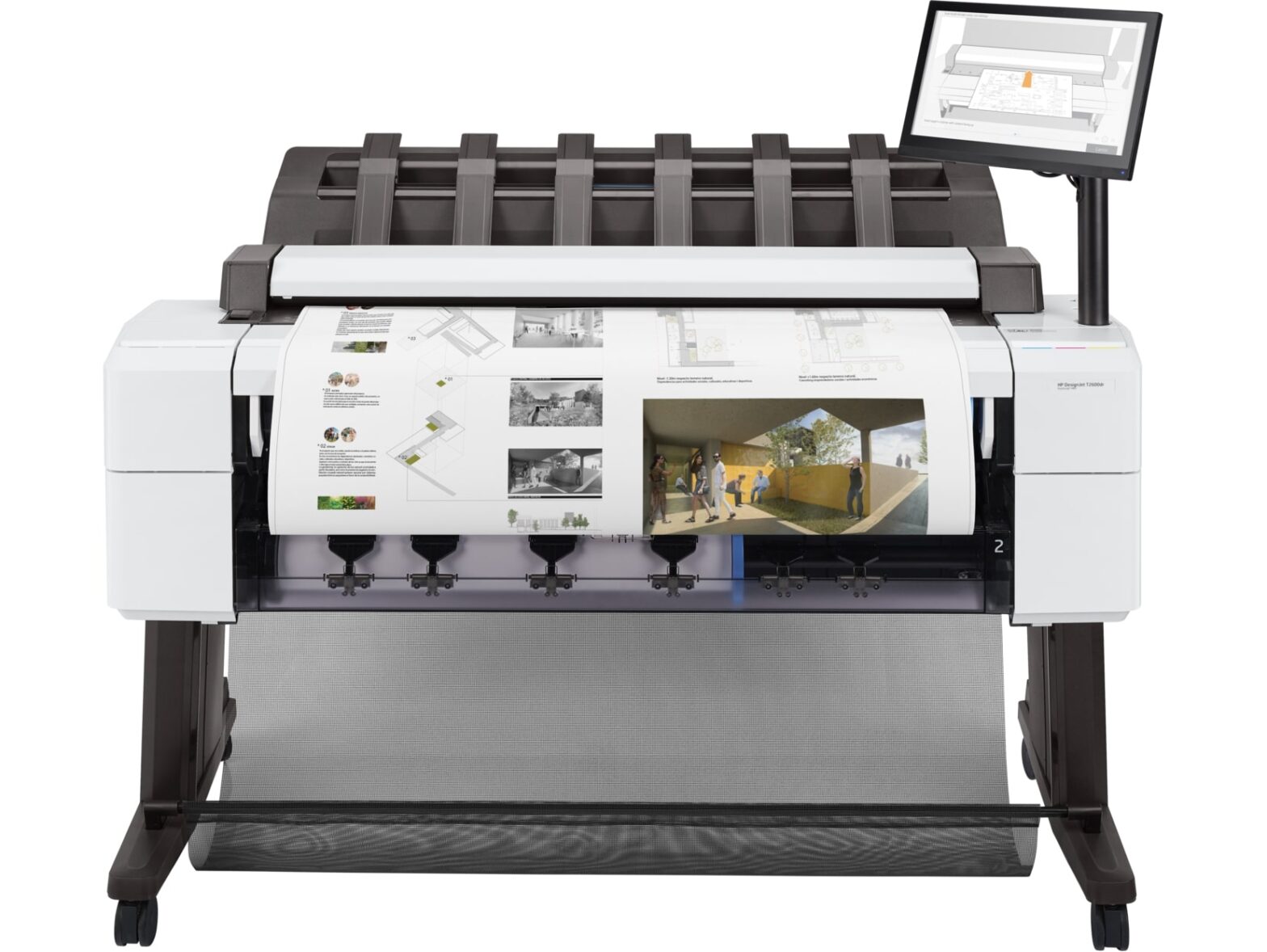
🛠️ HP DesignJet T2600 Troubleshooting Guide
- Printer Won’t Turn On
Possible causes:
- Power cable loose or faulty
- Internal power issue
Fix:
- Check power cable on both ends
- Try a different outlet
- Hold power button for 10–15 seconds
- If no response → likely hardware failure → service required
- Paper Jam / Loading Issues
Symptoms:
- “Paper Jam” error
- Paper won’t feed or skewed prints
Fix:
- Open front cover and rear path
- Gently remove jammed paper (pull in direction of feed)
- Reload paper properly:
- Align edges evenly
- Ensure correct roll width setting
- Poor Print Quality (Lines, Fading, Blurry)
Common causes:
- Clogged printheads
- Low ink
- Wrong paper profile
Fix:
- Run Printhead Cleaning
- Optimize Quality → Clean Printhead
- Check ink levels
- Align printheads
- Use correct paper type in settings
- Replace printhead if issue persists
- Printer Not Connecting (Wi-Fi / Network)
Symptoms:
- Printer offline
- Jobs stuck in queue
Fix:
- Restart printer + router
- Print network configuration page
- Ensure same network as computer
- Re-add printer:
- Windows: Devices → Printers → Add Printer
- Assign static IP to avoid drops
- Slow Printing
Possible reasons:
- High-quality mode enabled
- Large file processing
- Network lag
Fix:
- Switch to Normal/Draft mode
- Reduce resolution (DPI)
- Print via USB for large files
- Update printer firmware
- Use HP Click printing software
- Ink Cartridge Errors
Symptoms:
- “Cartridge missing or damaged”
- Ink not recognized
Fix:
- Remove and reseat cartridge
- Clean chip contacts gently
- Ensure genuine HP cartridges
- Replace cartridge if faulty
- Scanner Not Working
Symptoms:
- Scan fails or not detected
Fix:
- Restart printer and scanning software
- Check network connection
- Update drivers (HP Smart or full driver package)
- Try scan-to-USB to isolate issue
- Firmware Issues / Freezing
Symptoms:
- Screen unresponsive
- Random errors
Fix:
- Restart printer
- Update firmware:
- HP website → search “DesignJet T2600 firmware”
- Perform factory reset (last resort)
- Error Codes (General Approach)
If you see an error code:
- Restart printer
- Check HP documentation for that code
- Note pattern (paper, ink, hardware)
- If persistent → likely service issue
🔧 Maintenance Tips
- Run printhead cleaning monthly
- Keep firmware updated
- Store paper in dry conditions
- Power off properly (don’t unplug abruptly)
🚨 When to Call Support
- Printer won’t power on
- Repeated hardware error codes
- Printhead replacement doesn’t fix quality
- Loud mechanical noises
Next post
HP DesignJet Troubleshooting
